Guide · How to use FormReady
How to use FormReady
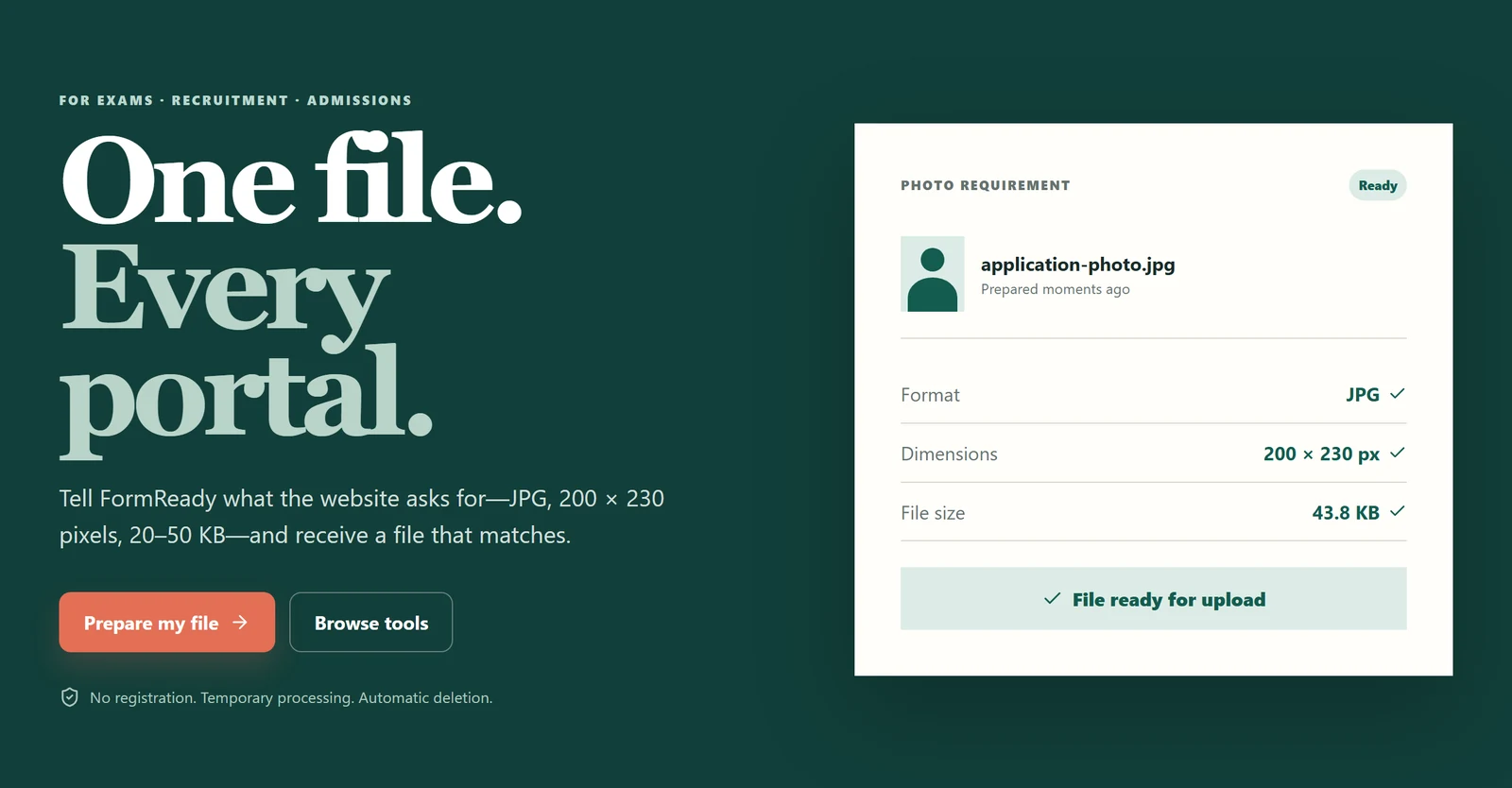
FormReady turns the file you have into the file a portal will accept: the right format, the right size in pixels or centimetres, and the right number of kilobytes. This page explains the one flow every tool follows, then what each tool is for, then what happens to your files.
- Read the requirement
- Pick the tool or exam
- Upload
- Check the result
- Download and submit
Watch: how FormReady works
Three minutes from the requirement to a ready file, in English or Hindi. Filmed on a demo copy with made-up files; captions are built in.
1. The flow every tool follows
Read the requirement first
Open the portal's instructions or the exam notice and copy the rule word for word: JPG, 200 × 230 pixels, 20–50 KB, or 3.5 × 4.5 cm at 300 DPI. Every rejection we hear about comes from a rule that was half-remembered. If the rule is in centimetres, note whether a DPI is given; if it is not, 300 DPI is the usual assumption and the pixel calculator shows the result.
Pick the tool, or let the exam page pick it
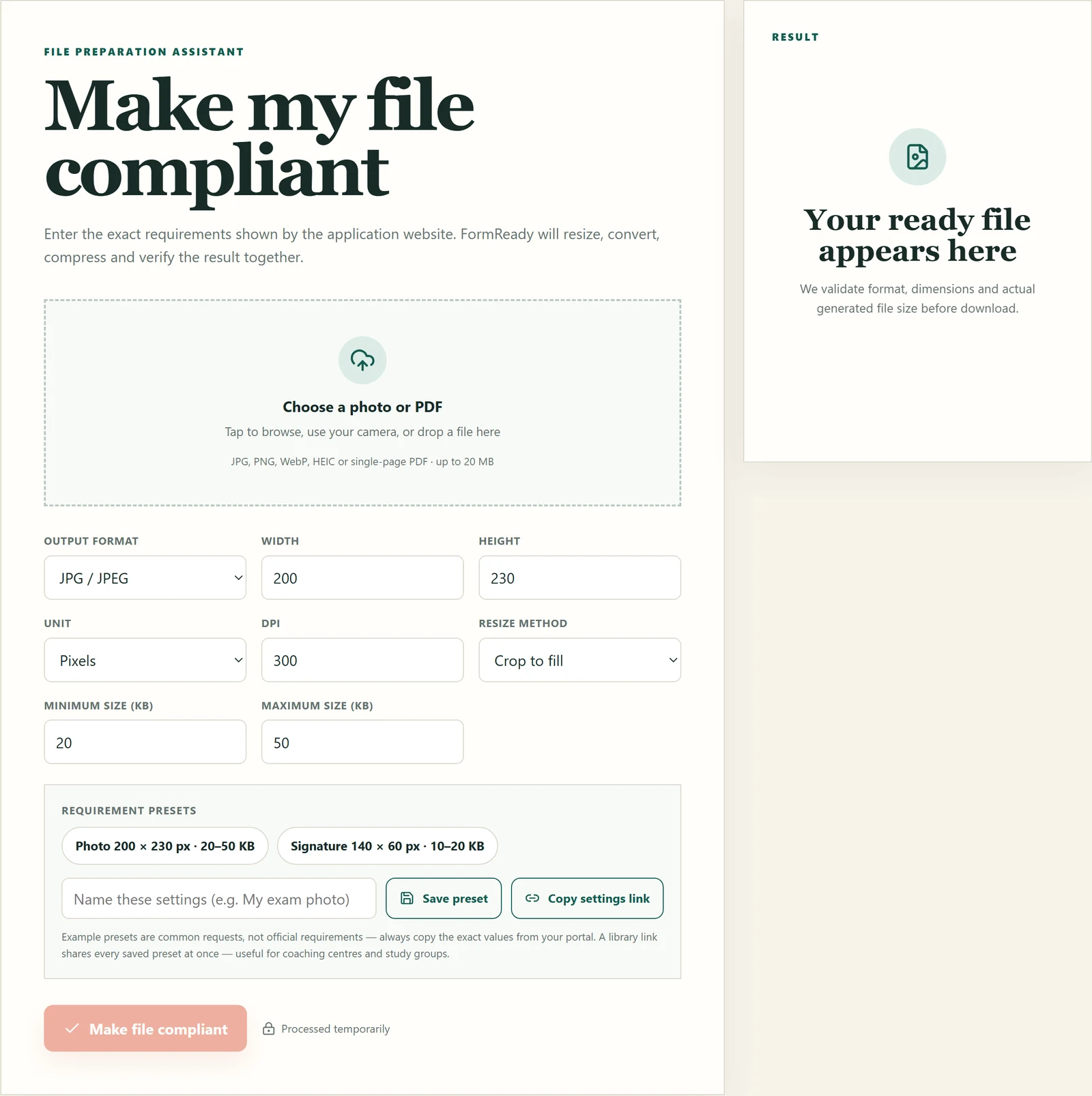
When you know the exact rule, Make my file compliant handles format, dimensions, DPI and KB range in one pass. When you only know the exam, open Exam and form requirements: each exam page lists the photograph, signature and document sizes from recent notices and opens the tool with the numbers already filled in.
Upload
Tap the dotted box to choose a file, use the camera on a phone, or drag a file in. JPG, PNG, WebP, HEIC and single-page PDF are accepted, up to 20 MB. Start from the original photo, not a forwarded copy.
Check the values, press the button
The fields under the upload box are the requirement. Change the output format, width, height, unit, DPI, resize method (crop to fill, or fit with padding) and the minimum and maximum size. Presets you save appear here for next time; the Copy settings link button gives you a link that opens the tool with the same values for someone else.
Check the result, then download
The result panel shows the produced file with each requirement ticked: format, dimensions, and the actual generated size in KB. The download button only appears when every check passes. If a check fails, the panel says which one, and usually why (for example, a minimum size that cannot be reached without a bigger source photo).
2. Exam and form presets
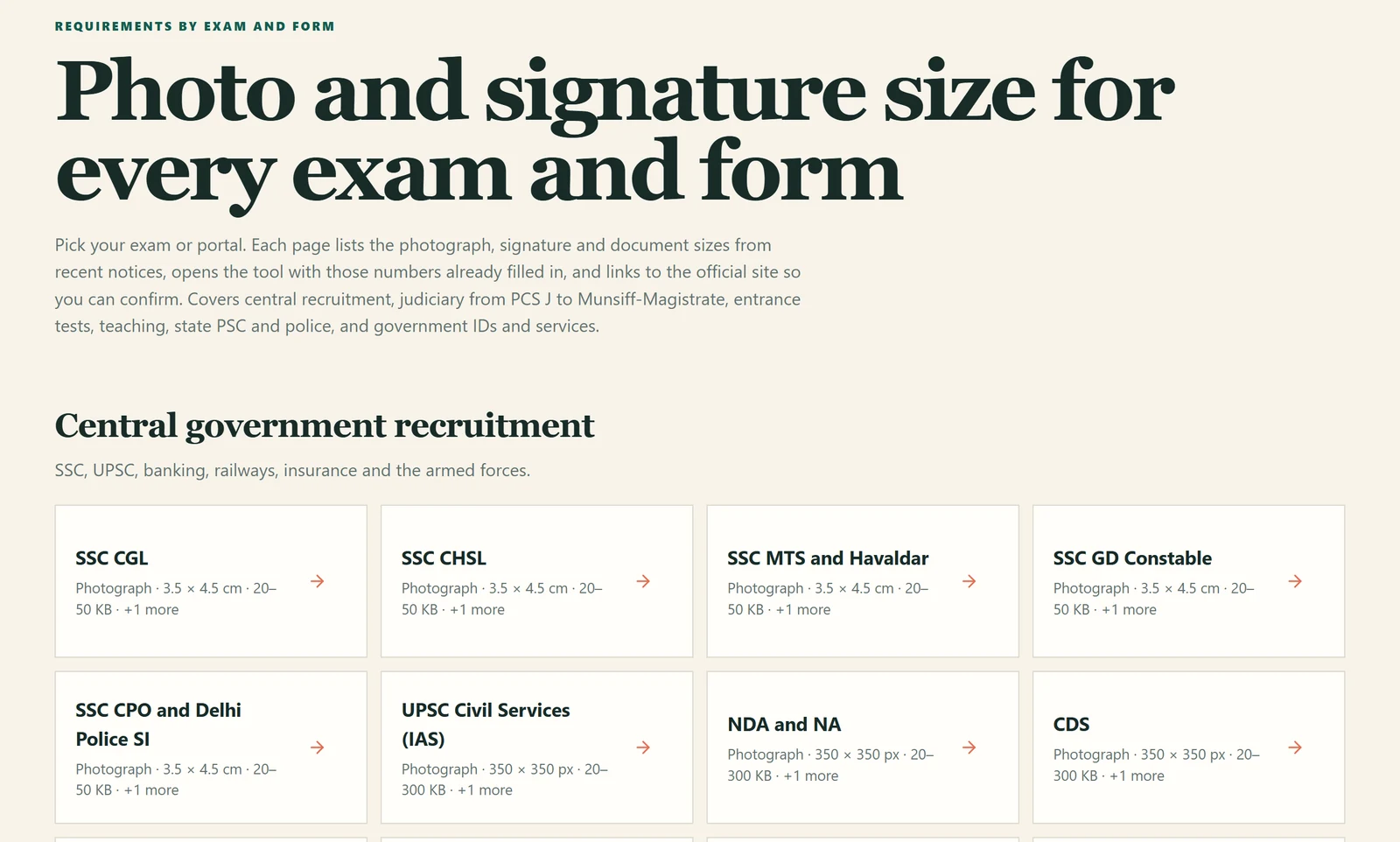
Each exam page shows the photograph, signature and any document sizes, opens the right tool with those values, and links to the official portal so you can confirm. Values marked as typical were not checked against a current notice; treat the official page as the final word, and use the Requirement checker when in doubt. Portals change their rules between recruitment cycles.
3. Which tool for which problem
Photo tools
For the photograph a portal asks for: a format, a width and height, sometimes a DPI, and almost always a KB range.
- Make my file compliantYou have the portal's full requirement. Enter format, size, unit, DPI and KB range together and get one file that meets all of them.
- Photo dimension setterOnly the width and height matter. Works in pixels, cm, mm or inches at the DPI you choose.
- Exact KB photoOnly the file size matters. Set a maximum, or a minimum and maximum, and the tool searches for the best quality that fits.
- Dimensions + KBBoth matter but there is no format or DPI rule. A shorter form of the compliant tool.
- Requirement checkerA portal rejected your file and you want to know why. Enter the rule, upload the file, and see each check pass or fail.
- Passport photo makerYou have a plain photo and need a passport-style crop. The face is detected and the headroom and margins balanced for you.
- Passport photo extractorThe photo you need is inside a scanned form or an old document.
- Passport photo sheetYou want to print copies: several identical photos arranged on A4, 4 × 6 inch or custom paper.
- Photo backgroundThe portal wants a white or light-blue background and yours is not. One person in the frame works best.
- White background photoThe one-click version of the tool above, for plain white.
- Change image DPIThe rule mentions DPI. Choose metadata-only (pixels unchanged) or physical-size mode (pixels recalculated).
- Pixels / cm / mm calculatorYou need to translate 3.5 × 4.5 cm at 300 DPI into pixels before using another tool.
Signature tools
Signature rules are stricter than photo rules: small KB limits and a plain white background. Sign on white paper with a black or blue pen, photograph it in daylight, then use one of these.
- Signature extractorYou photographed or scanned a signed sheet. The handwriting is detected, the crop can be adjusted, and the paper background is cleaned to white.
- Signature resizerYou already have a signature image and need exact dimensions plus a KB range.
- Signature under 10 KBQuick presets for the three most common limits. The generated file size is measured, not estimated.
- Signature under 20 KBSame engine, 20 KB limit.
- Signature under 50 KBSame engine, 50 KB limit.
ID cards and documents
For Aadhaar, PAN, voter ID, marksheets and other documents you have to upload or print. Nothing here edits the information on a document; the tools only crop, mask, scan or combine.
- ID card extractorCut the complete card cleanly out of a photo or scan, and optionally make a two-box A4 print PDF.
- Front + back to one pageBoth sides of a card on one printable A4 page at true card size.
- Mask ID numbersHide chosen digits before sharing a copy. You confirm every masked area, and the mask is flattened into the pixels.
- Document redactionBlack out parts of any page of a PDF permanently.
- Document scannerUse the phone camera as a scanner: corners are detected, the page is straightened, and several pages become one PDF.
- Extract text (OCR)Copy text out of an image or PDF in English or Hindi. Images are read entirely inside your browser.
PDF tools
For the documents portals ask for as PDF, usually with a size limit.
- Compress PDFReach 100, 200 or 500 KB. A text-preserving mode is tried first, so scanned and typed documents both work.
- PDF size limitThe portal names an exact maximum size for a PDF.
- Images to PDFPhotos of pages need to become one document. Reorder and rotate before combining.
- PDF to imagesYou need a page as PNG or JPG, at a DPI you choose.
- Merge PDFsUp to 15 files joined in the order you set.
- Split PDFKeep pages 1-3,5,8-10 as one file, or separate every page.
Everyday fixes
Small problems that cause big rejections.
- Image compressorQuick 20 to 500 KB limits with the before and after size shown.
- Image converterJPG, PNG, WebP or a single-page PDF.
- Orientation fixerA phone photo that keeps turning sideways on the portal. The rotation is baked into the pixels.
- Metadata removerStrip GPS location, camera model and other EXIF details before sharing.
- Photo enhancerA dull or dim scan. Global brightness and contrast only, no beauty filters.
Calculators
These run entirely in the browser and keep working offline once the site has been opened once.
- Age as on dateExact years, months and days on the eligibility cut-off date in a notice.
- Marks percentageSubjects with different maximum marks, combined correctly.
- SGPA calculatorCredit-weighted semester average with your university's conversion rule.
- CGPA calculatorCumulative average across semesters.
4. What happens to your files
- No account, no history on the server. Files that need the server are processed in memory and are not written anywhere public or kept after the response. Original file names are not logged.
- Many jobs never leave your browser. Simple JPG and WebP conversions and compressions, text recognition (OCR), the scanner preview and every calculator run on your own device.
- Recent results live on your device. The Recent results page re-downloads your last few files from this browser's own storage; it has an off switch.
- No editing of identity data. The ID tools crop, mask and print; they never change what a document says. FormReady is not affiliated with UIDAI or any government department.
- Advertising. The site shows ads to stay free. The privacy page explains cookies and consent.
5. On a phone, offline, and in Hindi
Everything works in a phone browser, including the camera scanner. Add FormReady to your home screen from the browser menu and the calculators keep working without a connection. A Hindi introduction with links to the most used exam pages is at हिन्दी में देखें.
6. Common problems
The portal still rejects my file after FormReady said it was ready
Read the portal's rule once more, word for word. The most common mismatch is the unit: 3.5 × 4.5 cm is not 350 × 450 pixels unless the portal also states a DPI. Put the exact rule into the Requirement checker with your file and it will show which check fails. Also compare the size on disk: some portals count KB as 1000 bytes.
My photo came from WhatsApp and nothing looks right
Messaging apps recompress and shrink pictures. Ask for the original file or re-take the photo. Start from the largest, cleanest version you have; the tools can only reduce quality, never add detail.
The file is HEIC from an iPhone
Upload it directly. HEIC is accepted and converted to the format you choose.
Where did my earlier results go?
Recent results are kept only in this browser, under Recent results in the footer. Nothing is stored on the server, so a different device or a cleared browser has no history. You can switch saving off there.
Does anything leave my device?
Simple JPG and WebP conversions and compressions, OCR, the scanner preview and the calculators run in your browser. Jobs that need the server (face detection, background replacement, PDF work, exact-KB searches with a minimum size) are processed in memory and not kept. See the privacy page for the full description.
Can I use these files for a friend's application?
Yes. Nothing is tied to an account. Saved presets and shareable settings links make it easy to prepare files for several people with the same requirement.
More background reading: getting a photo into an exact KB range, passport photo headroom, and scanning and sharing ID documents safely.